Still repeating the same shell commands and file uploads?

Drag, drop, and deploy
to multiple servers in one click

Visual workflows + batch execution + zero-code orchestration | Get started in 10 minutes and save 2 hours every day

What TomatoTerm Can Do

Click any image to zoom in for details

Server Connectivity and Management

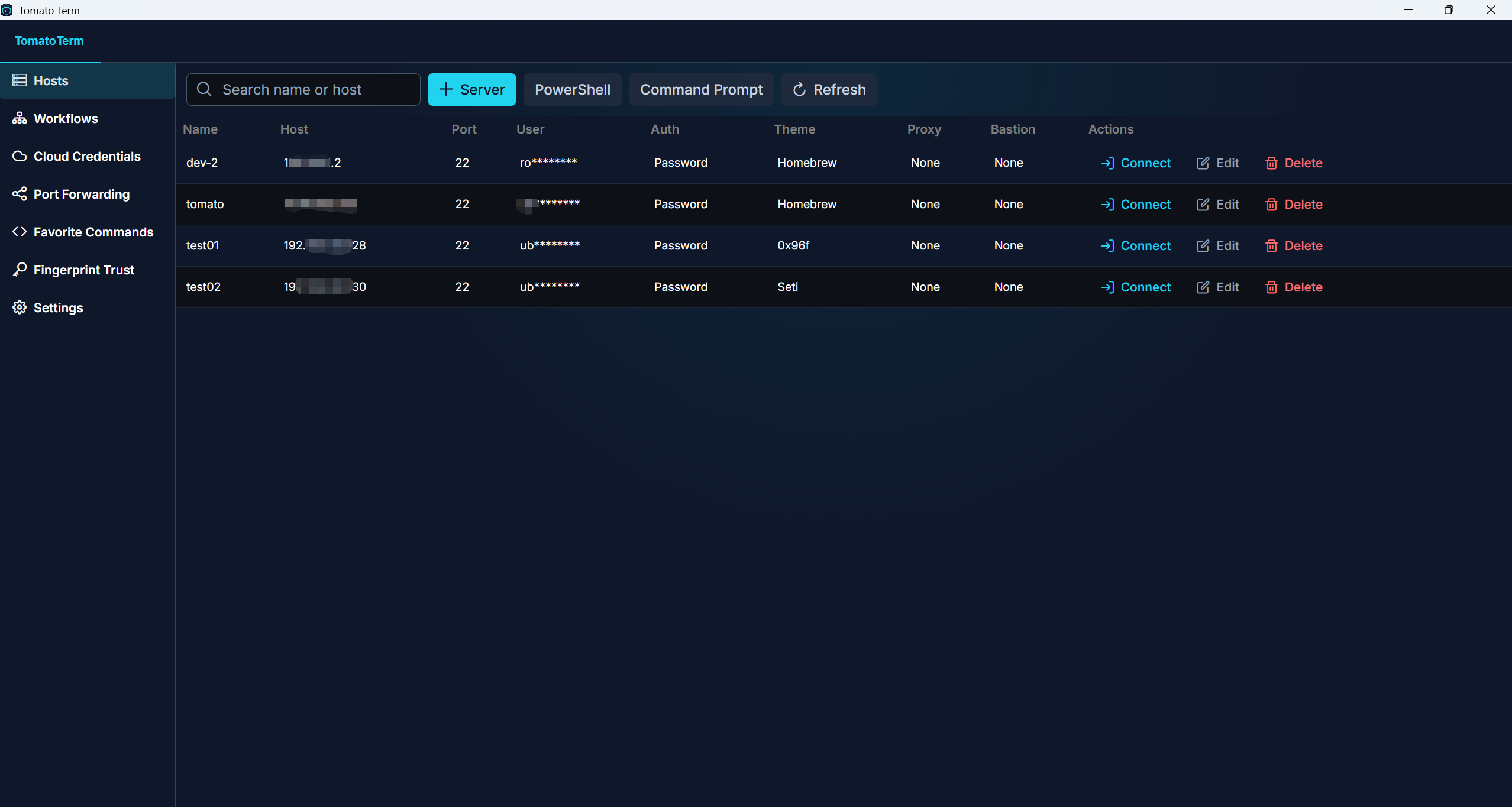
Server list screenshot

Server List

Manage all servers in one place, with fast connect, edit, delete, and search.

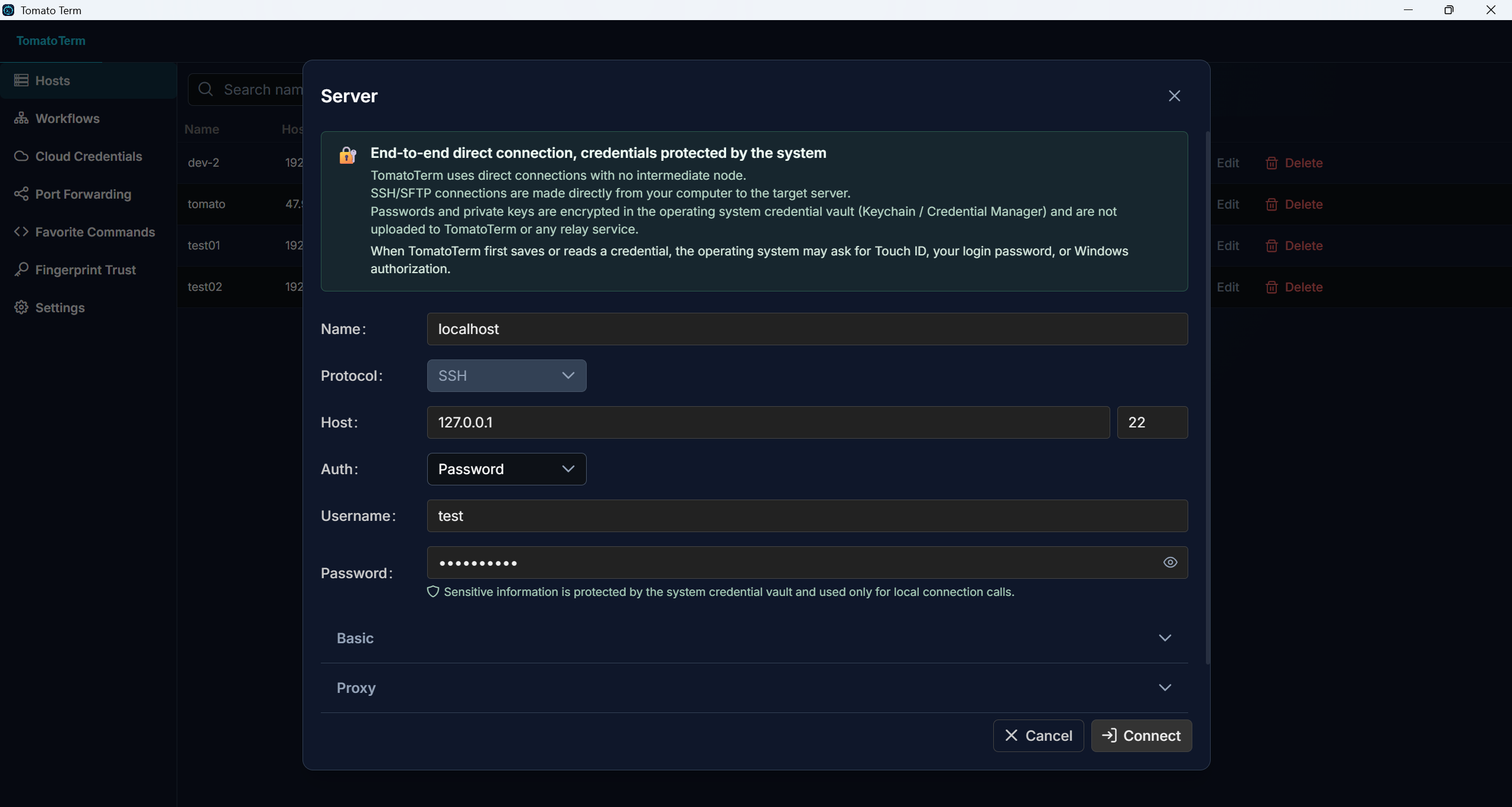
Connection settings screenshot

Connection Profiles

Supports password and key-based login, custom ports, and reusable connection settings.

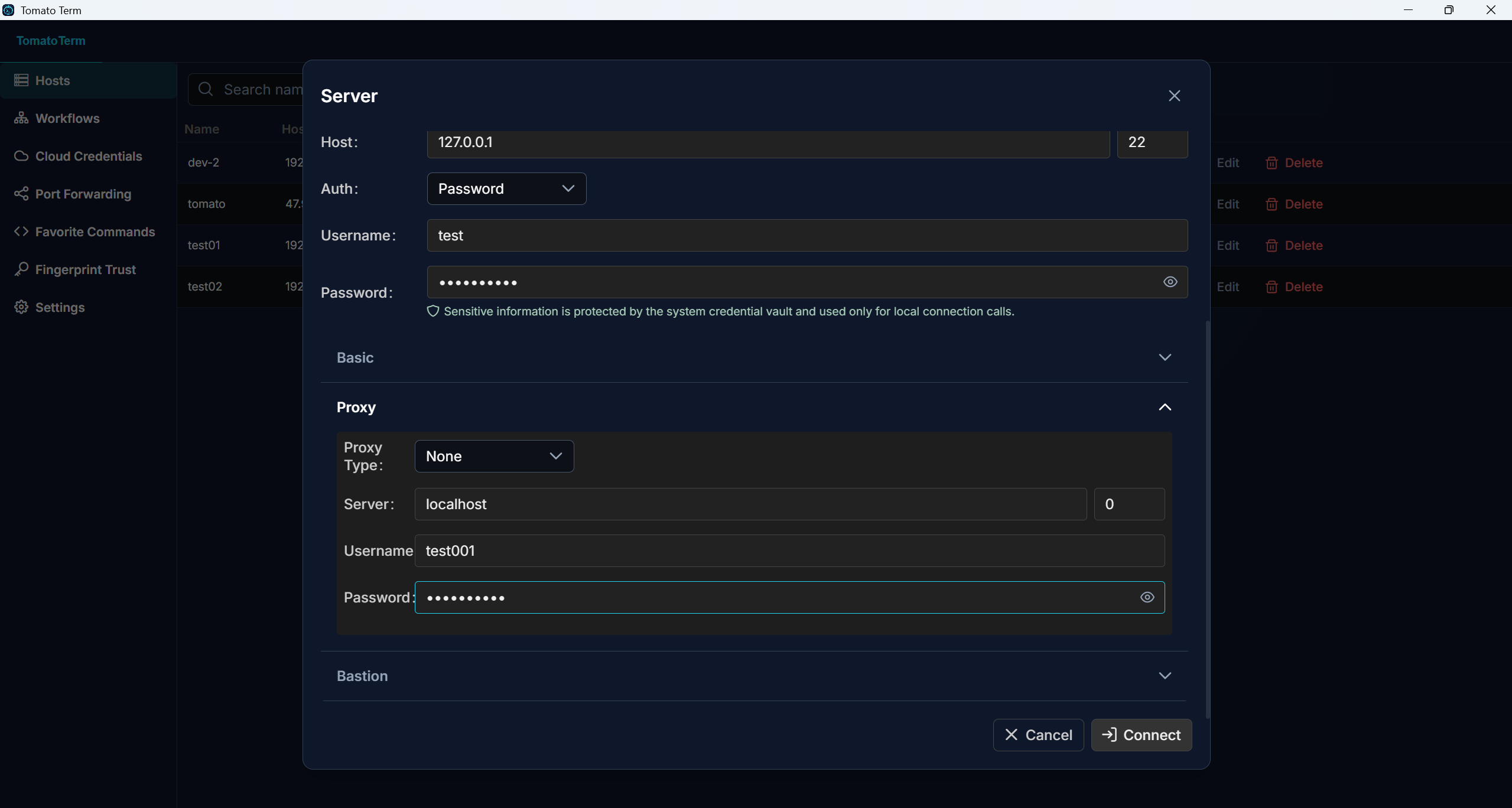
Proxy settings screenshot

Proxy Support

Configure HTTP or SOCKS proxies to work across restricted and complex network environments.

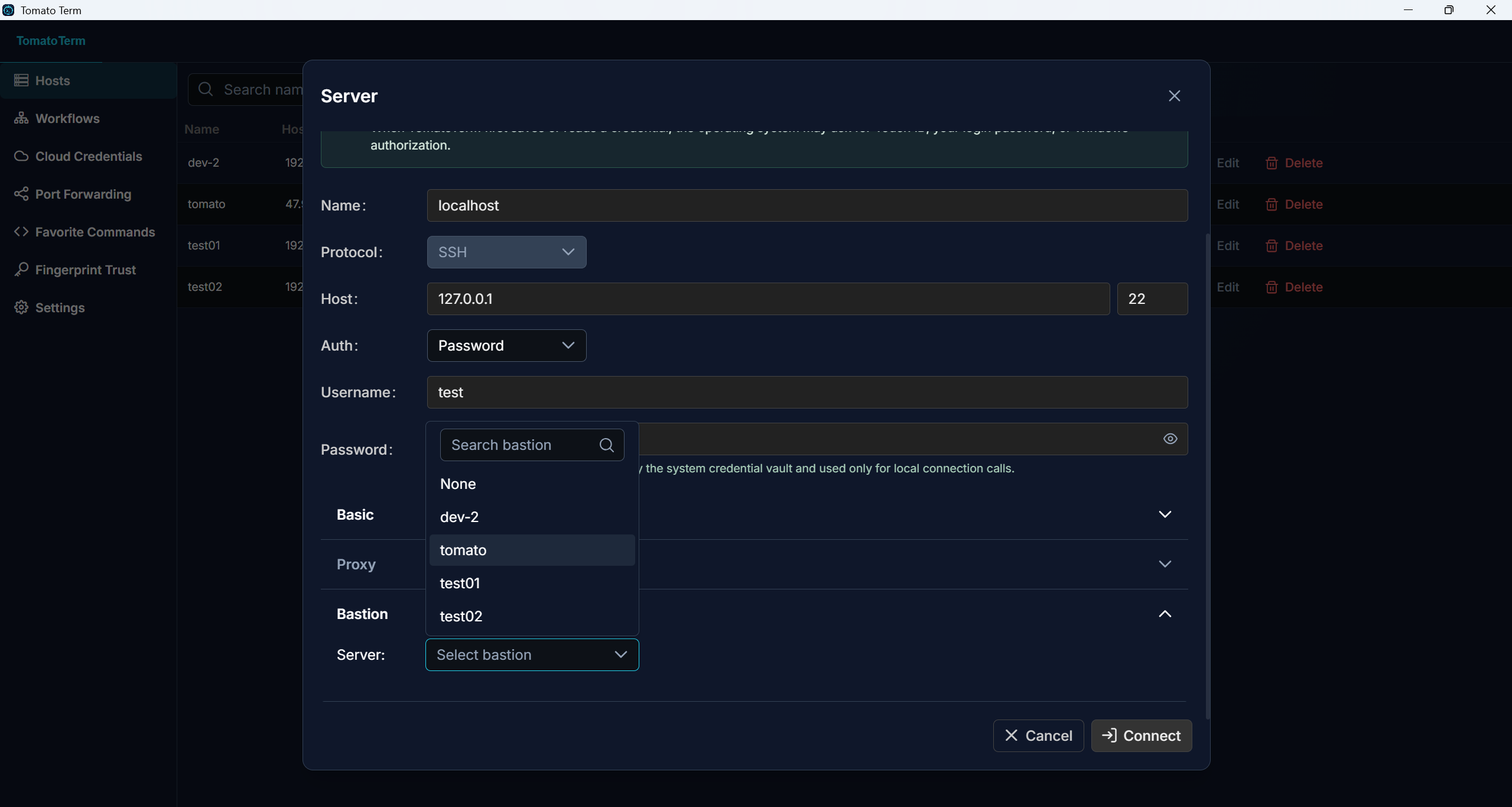
Jump host screenshot

Bastion / Jump Host

Connect to internal servers securely through jump hosts, including multi-hop scenarios.

Host fingerprint screenshot

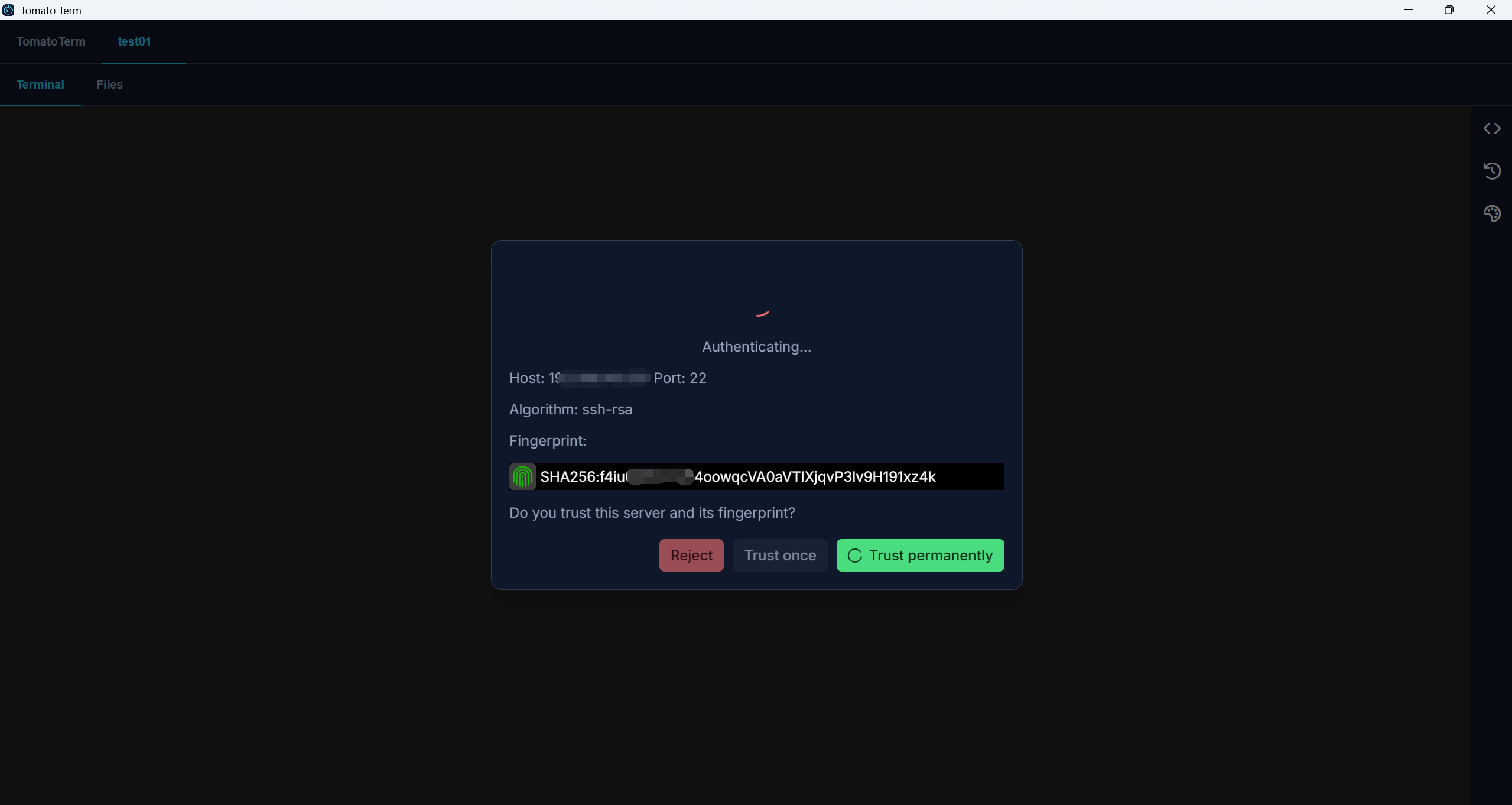
Fingerprint Verification

Verify host fingerprints on first connect to reduce man-in-the-middle risks.

Docker Container Management

Docker container screenshot

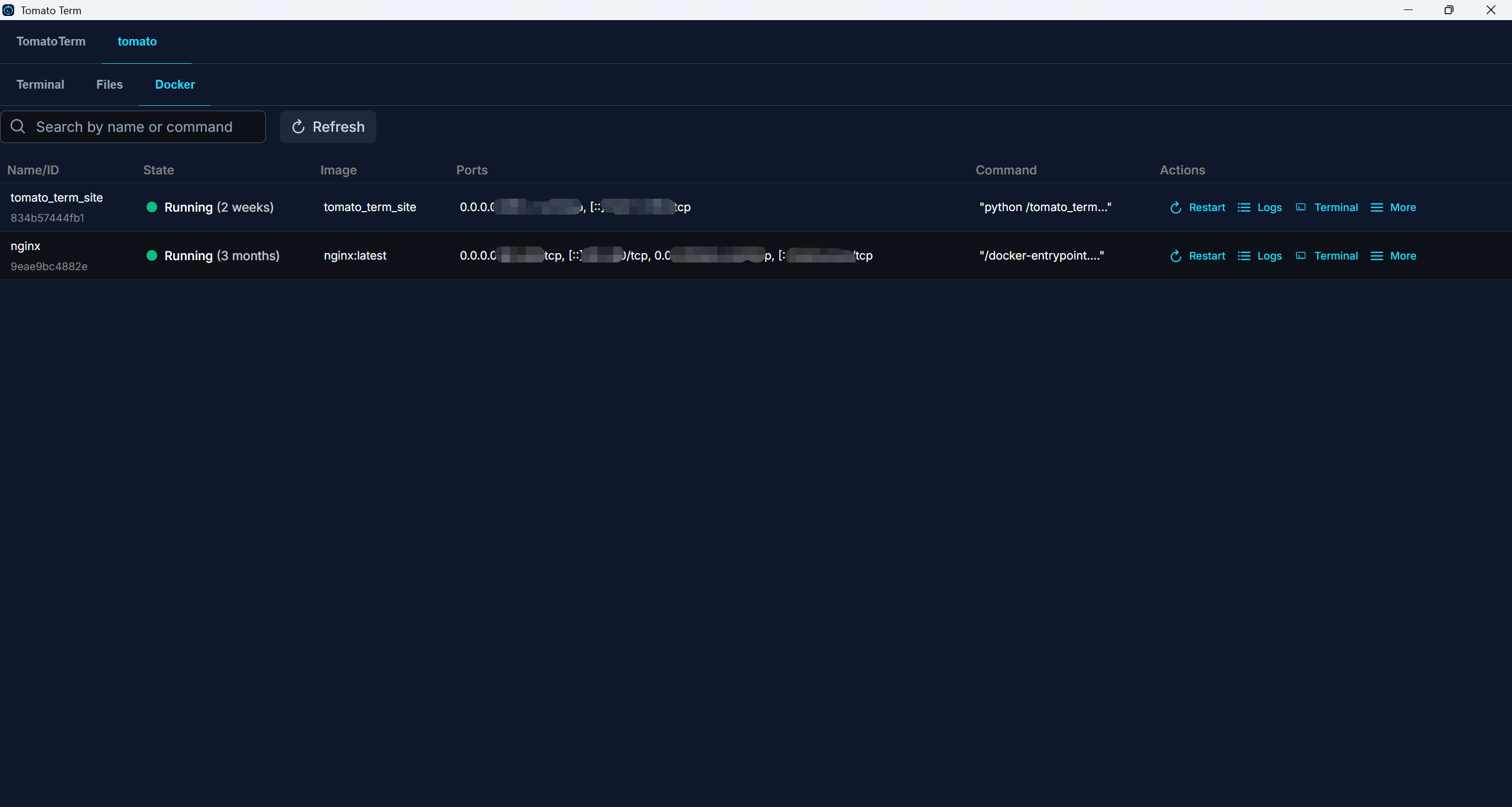
Container Operations

Inspect status and logs, then start, stop, restart, delete, and batch-operate containers.

Workflows

Workflow management screenshot

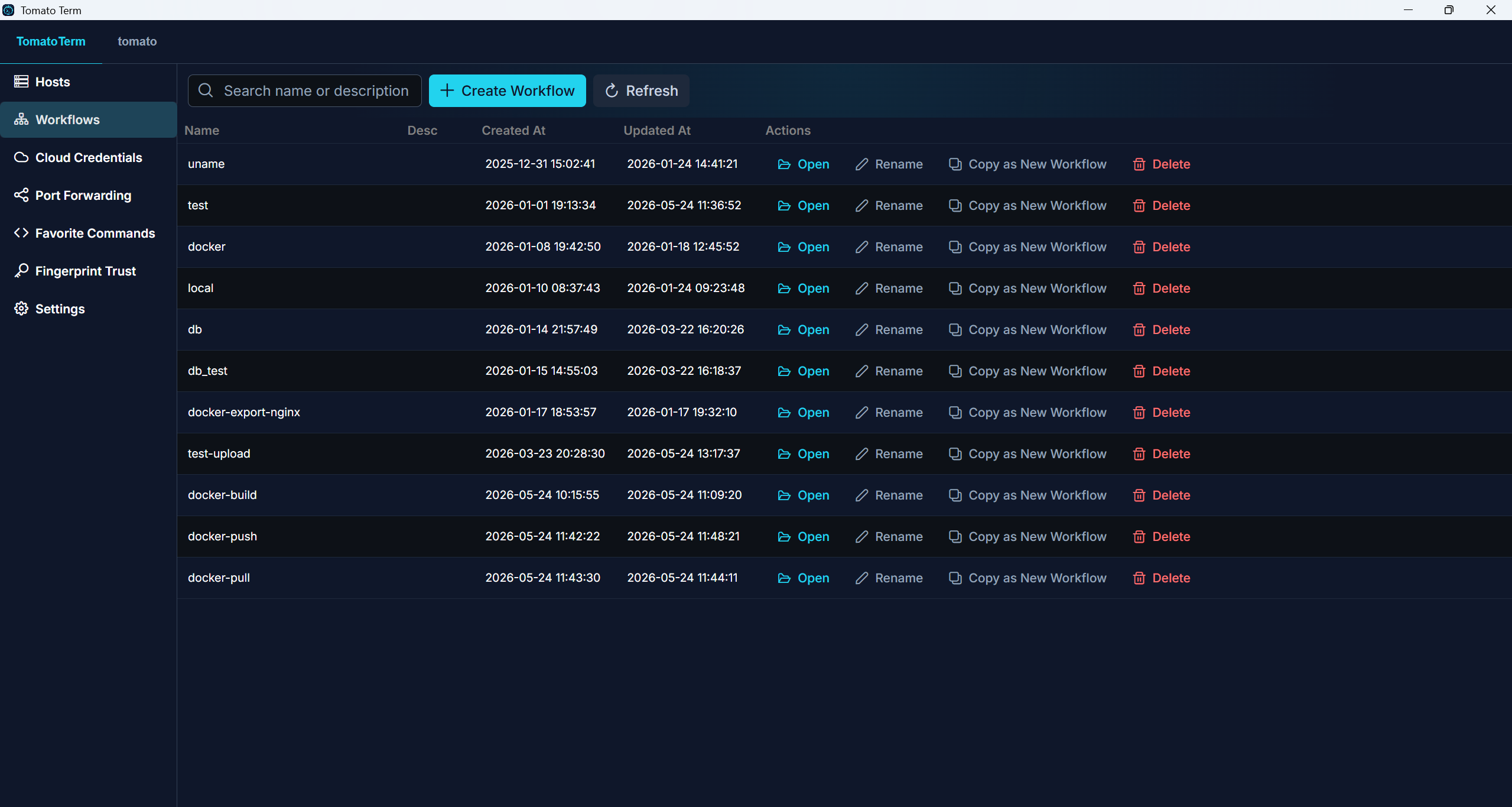
Workflow Management

Browse workflows, rename them, duplicate them, and remove what you no longer need.

Workflow editor screenshot

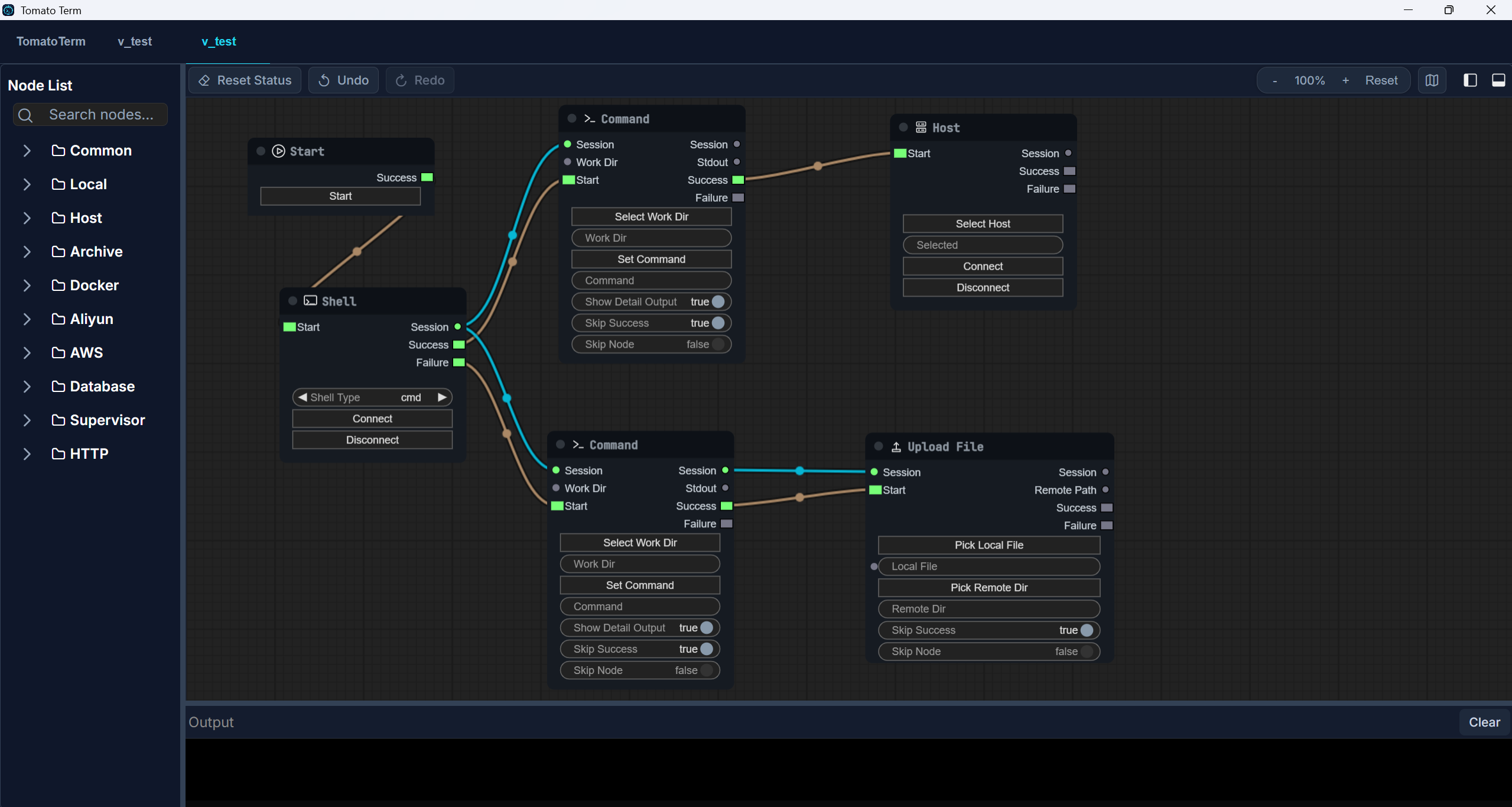
Visual Workflow Builder

Build workflows with drag and drop, update them in one click, and track node states with visible output logs.

Online File Management

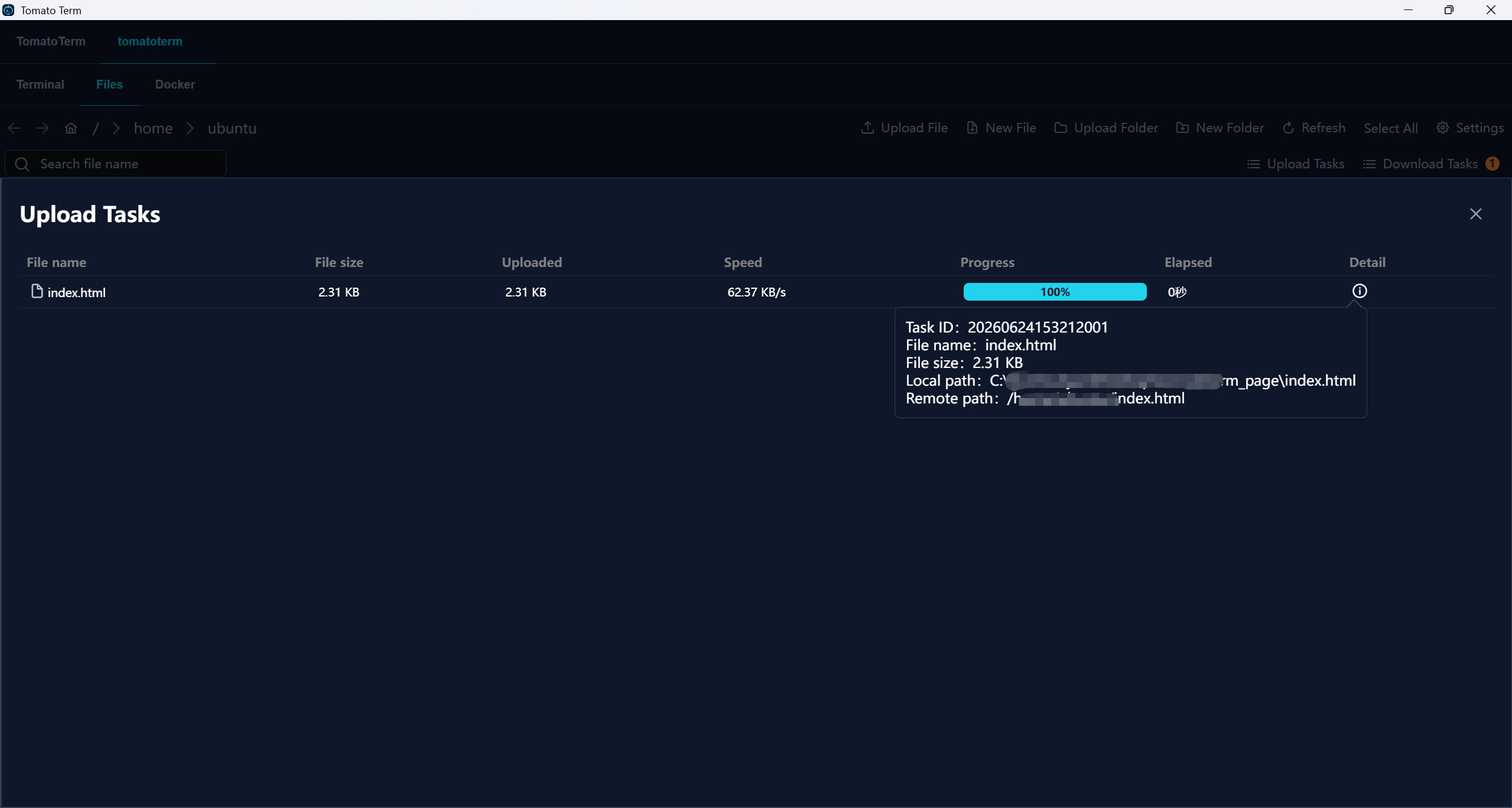
File upload screenshot

Upload Files and Folders

Supports resumable transfers for large files, live speed monitoring, and drag-and-drop uploads.

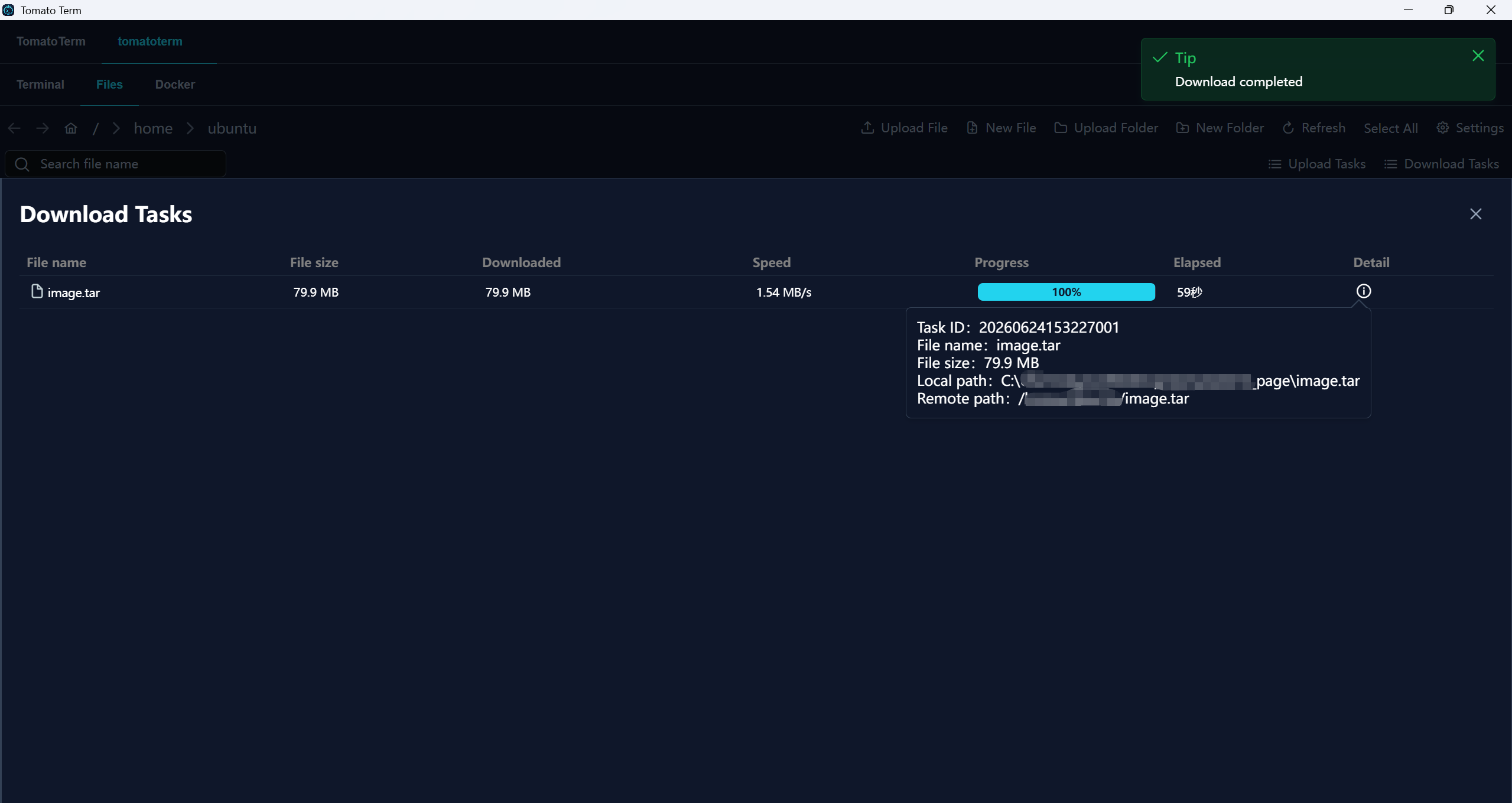
File download screenshot

Download Files and Folders

Run concurrent downloads with pause, resume, and resumable transfer support.

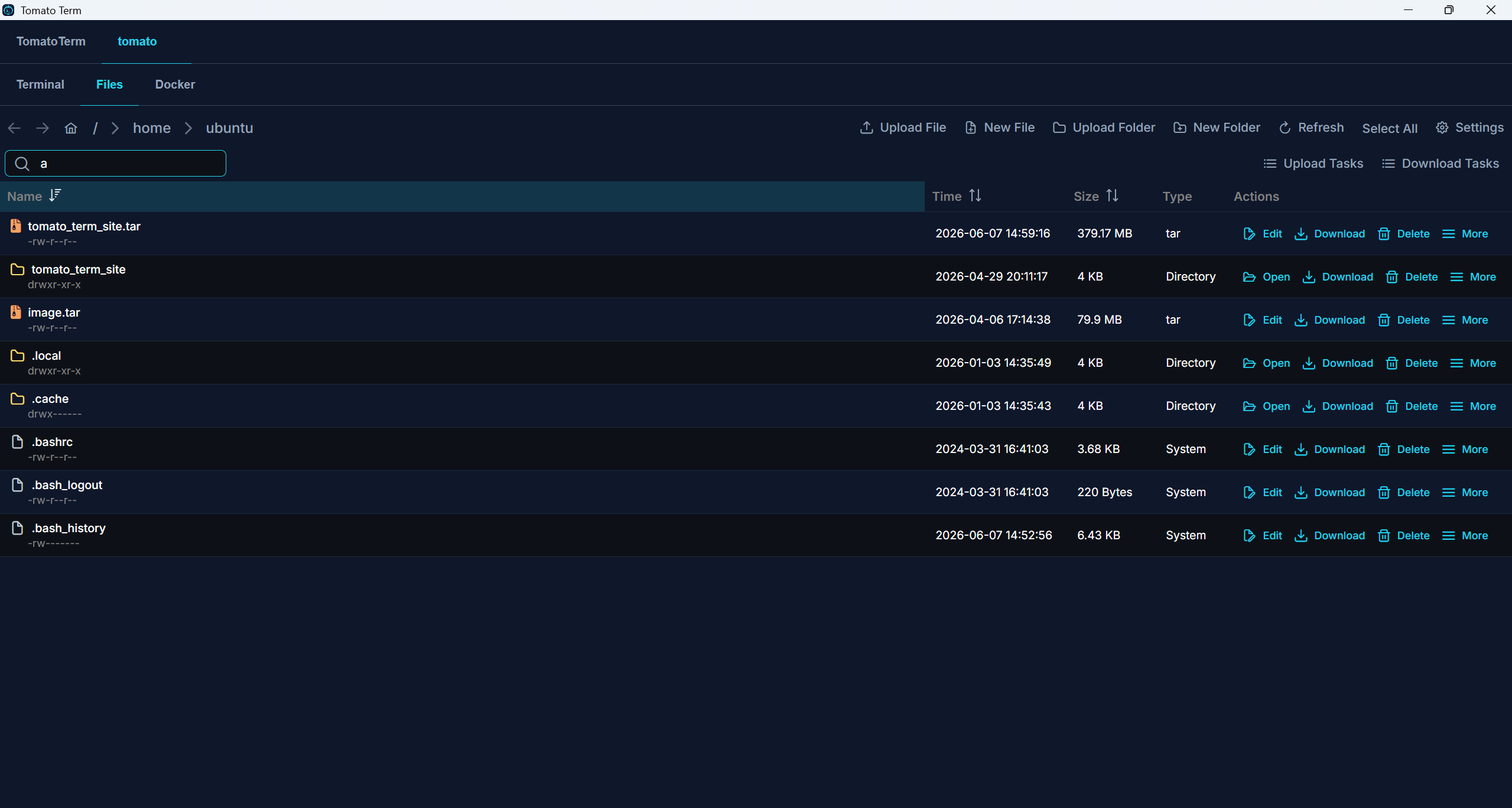
File manager screenshot

File Management

Browse remote directories and edit, download, delete, rename, chmod, archive, or copy names and absolute paths.

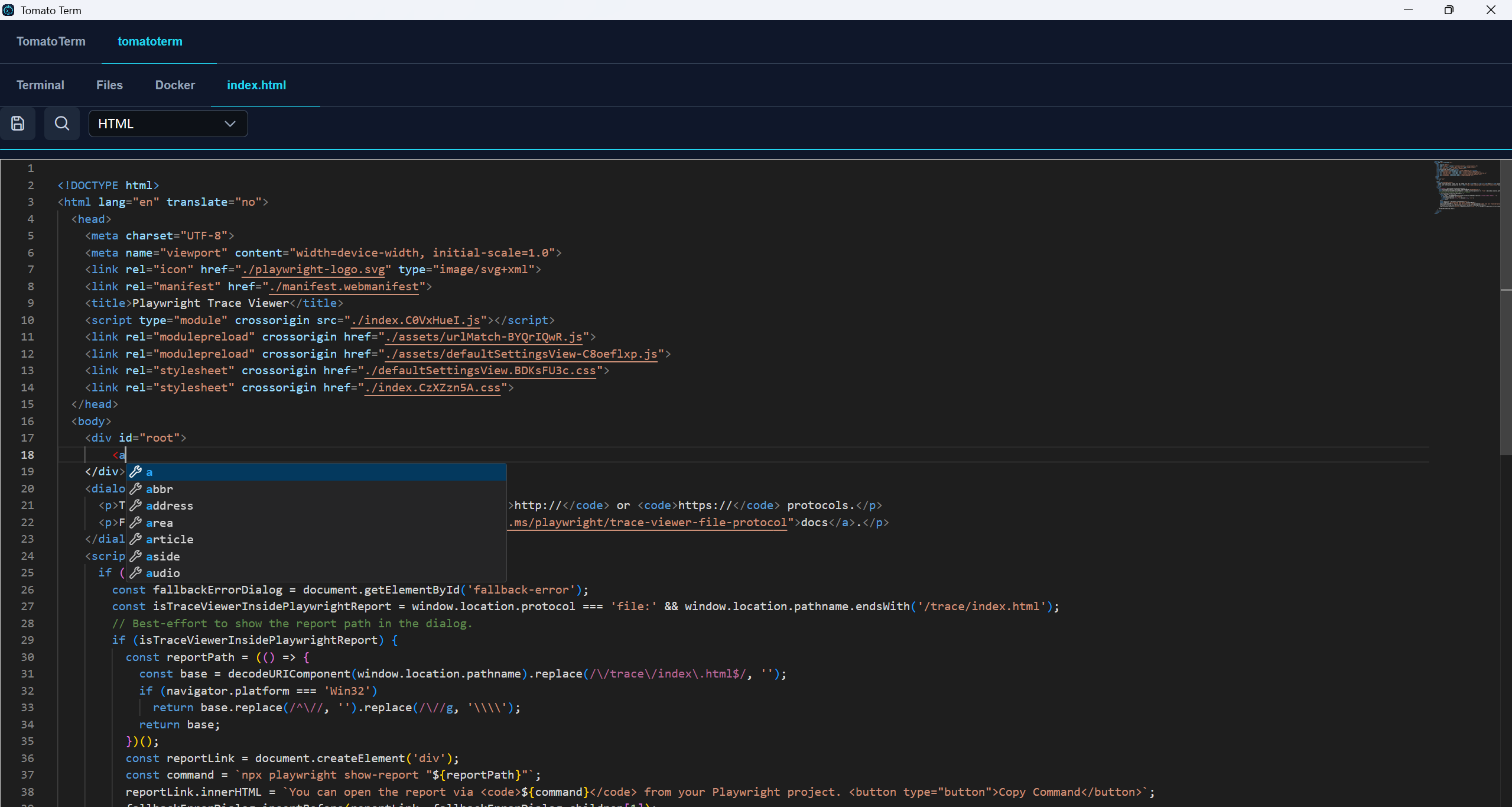
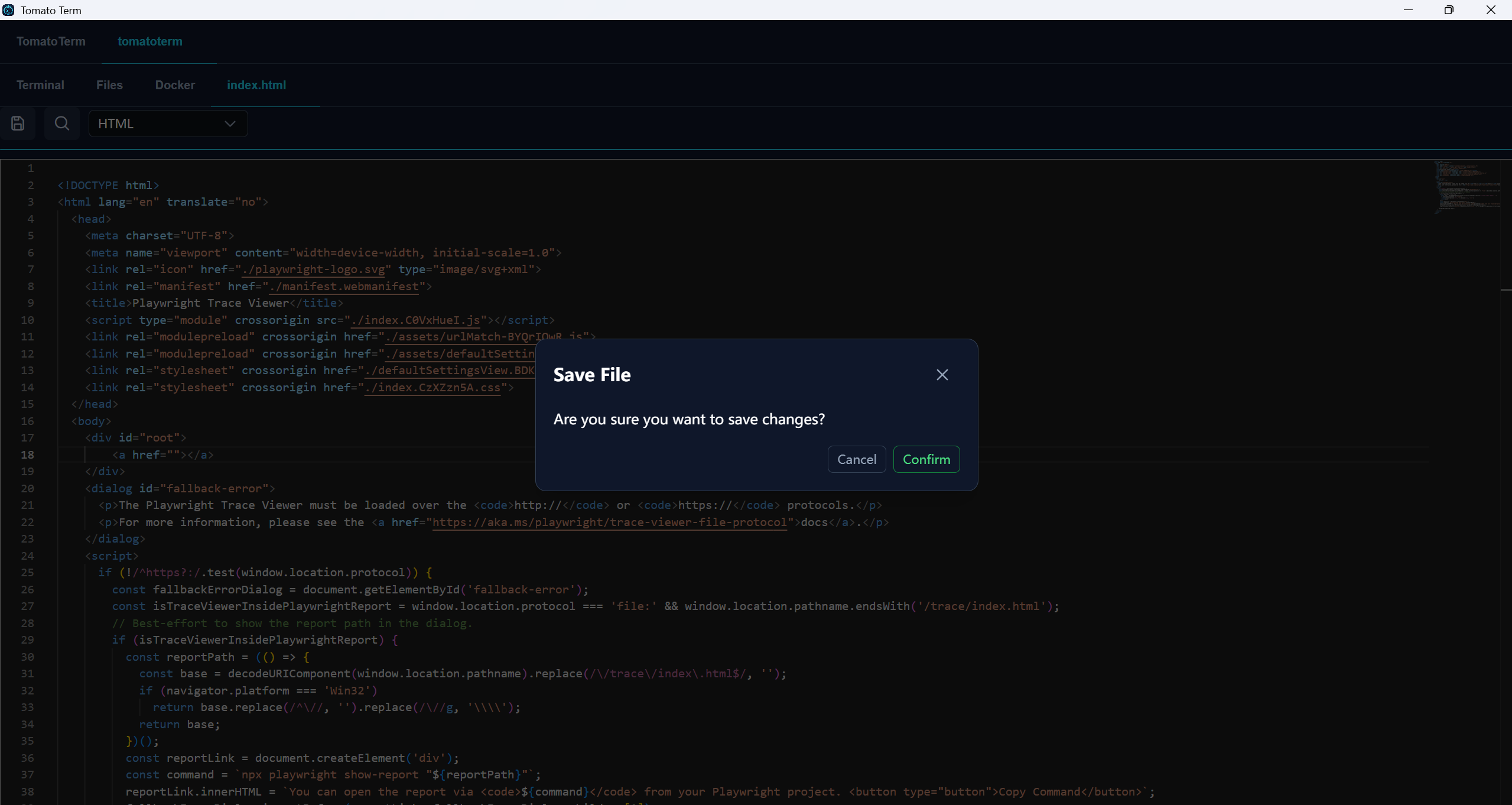
Online file editor screenshot

Edit Remote Files Online

Code highlighting, syntax checks, autocomplete, full-text search, and direct remote editing with auto-upload on save.

Safe save screenshot

Safe Save

Adds a confirmation step before saving to reduce accidental changes.

Personal Productivity

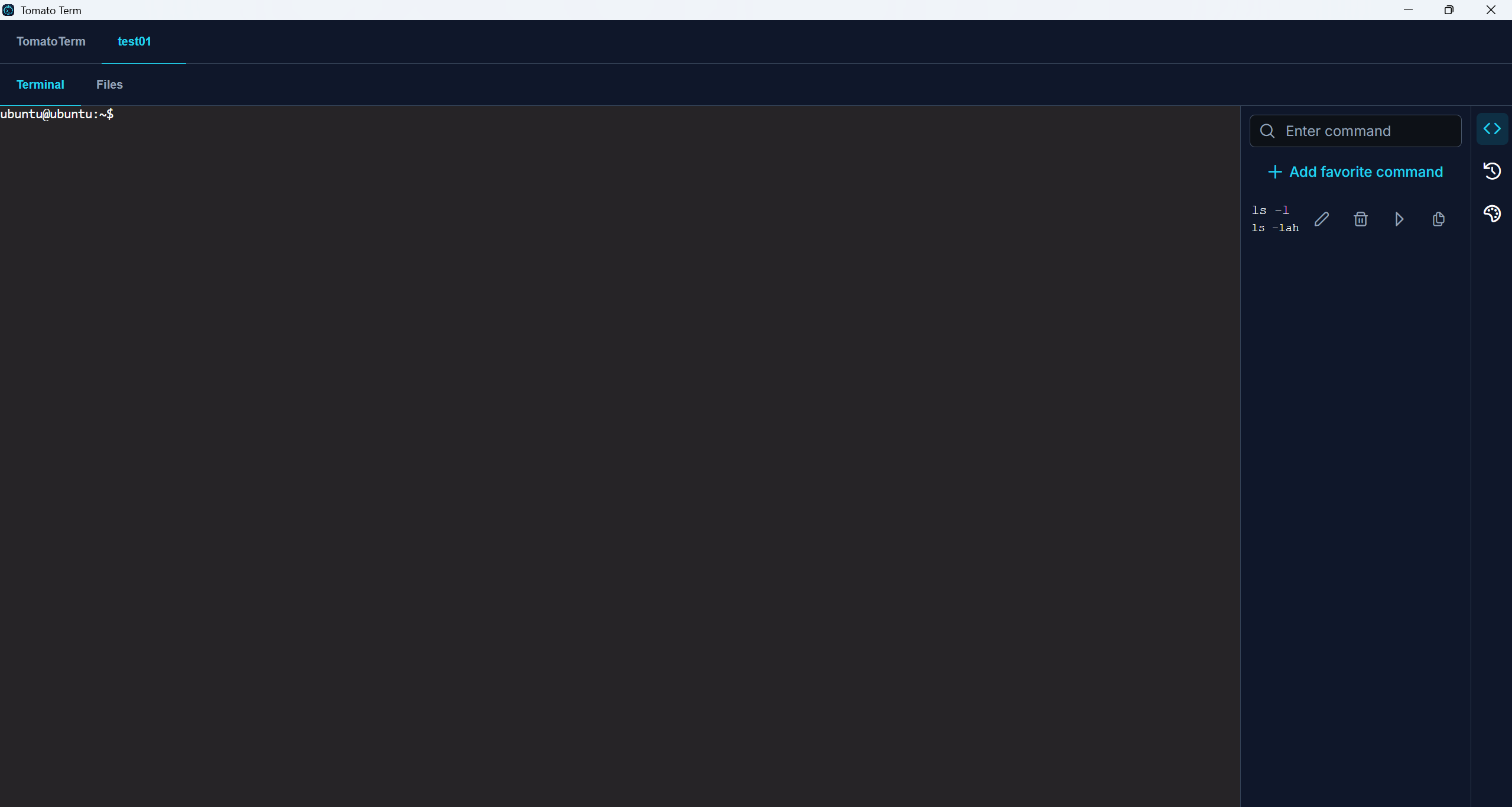
Saved commands screenshot

Saved Commands

Store frequently used commands to avoid repetitive typing. Edit, delete, run, and copy them at any time.

History command favorite screenshot

Save from Command History

Quickly copy or favorite commands directly from the command history panel.

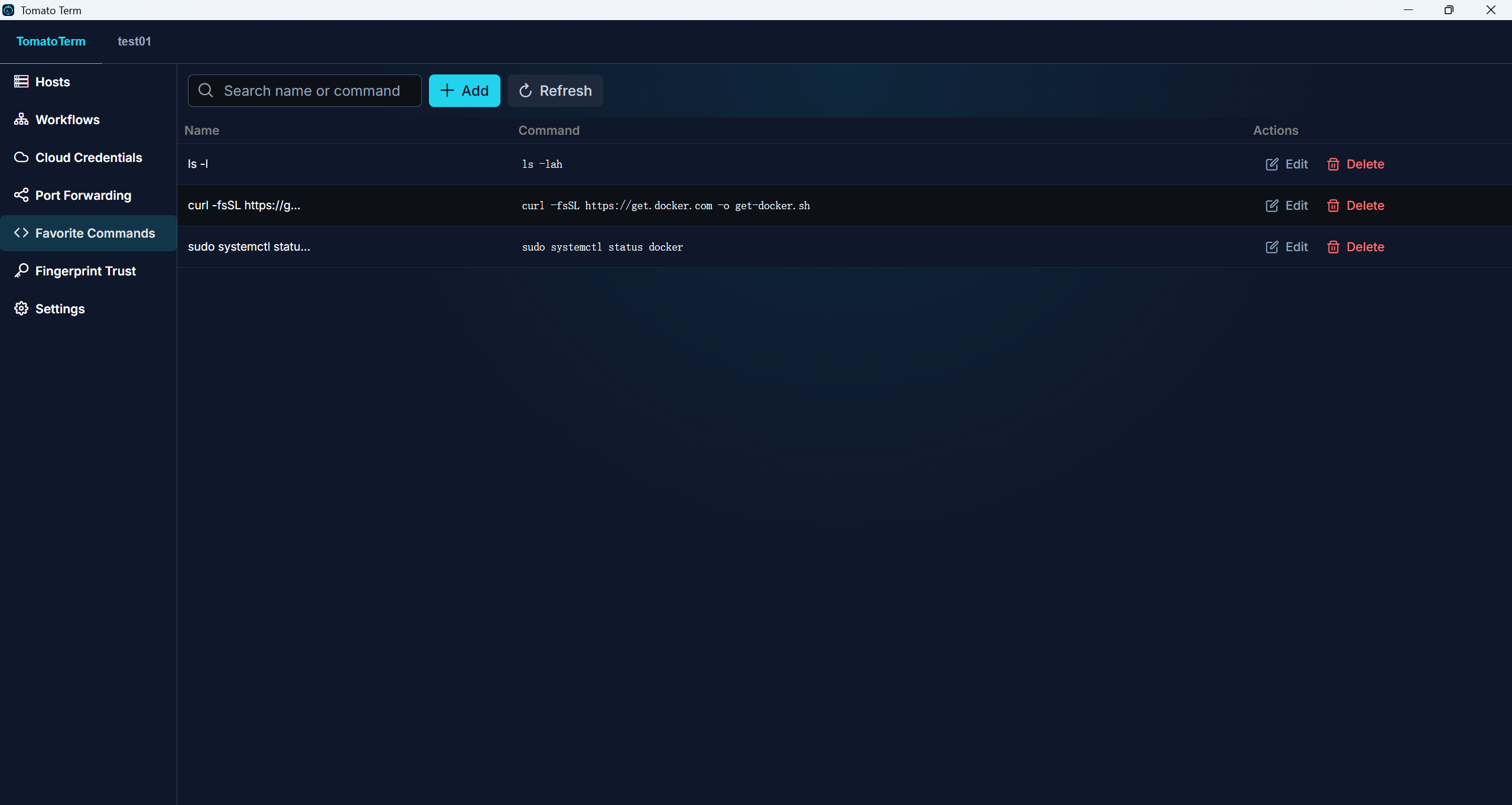
Command collection manager screenshot

Manage Saved Commands

Organize all saved commands even when you are not connected to a server.

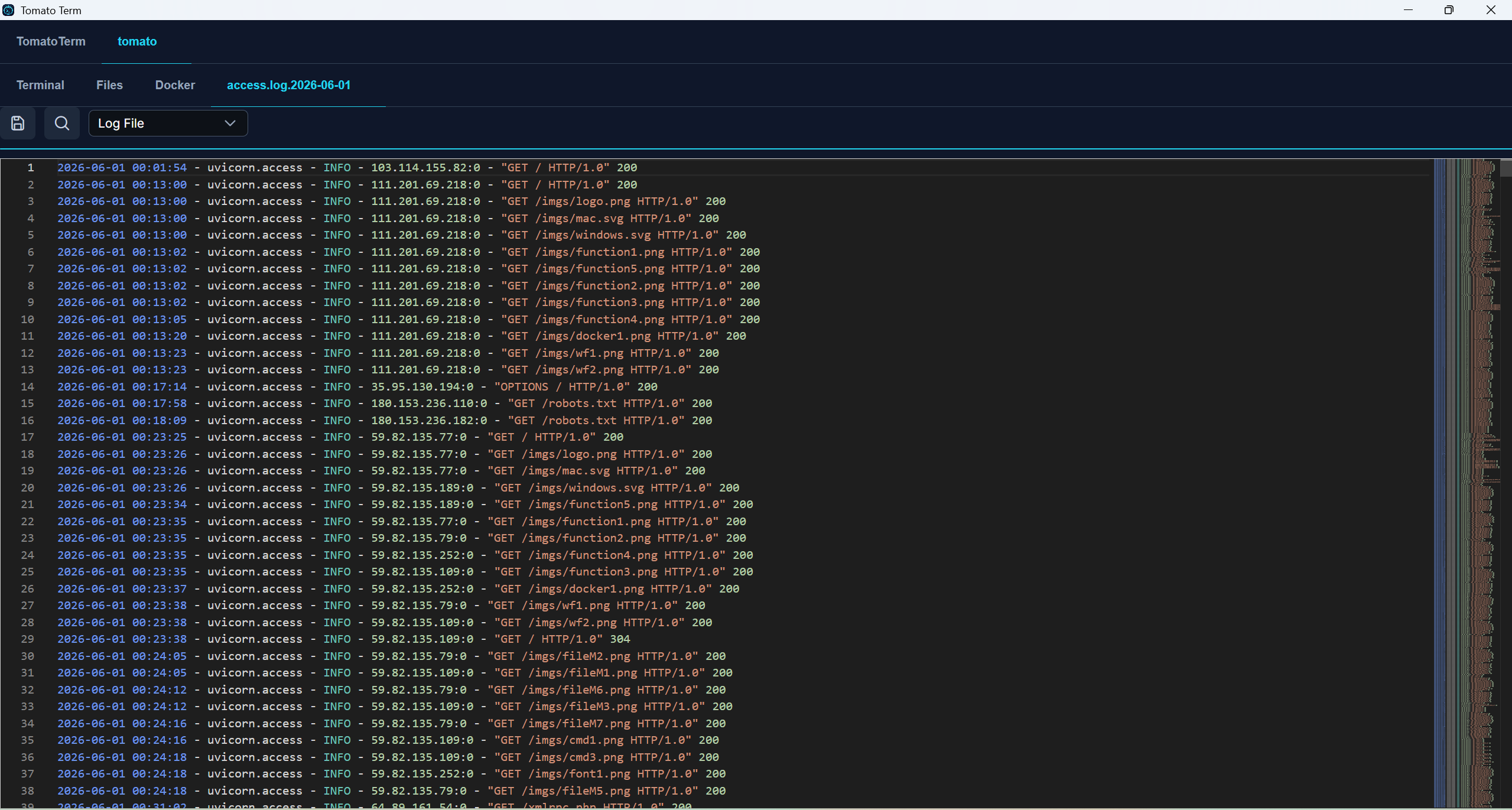
Online log viewer screenshot

Online Log Viewer

Open and inspect server logs directly inside the app with highlighted output.

Interface Customization

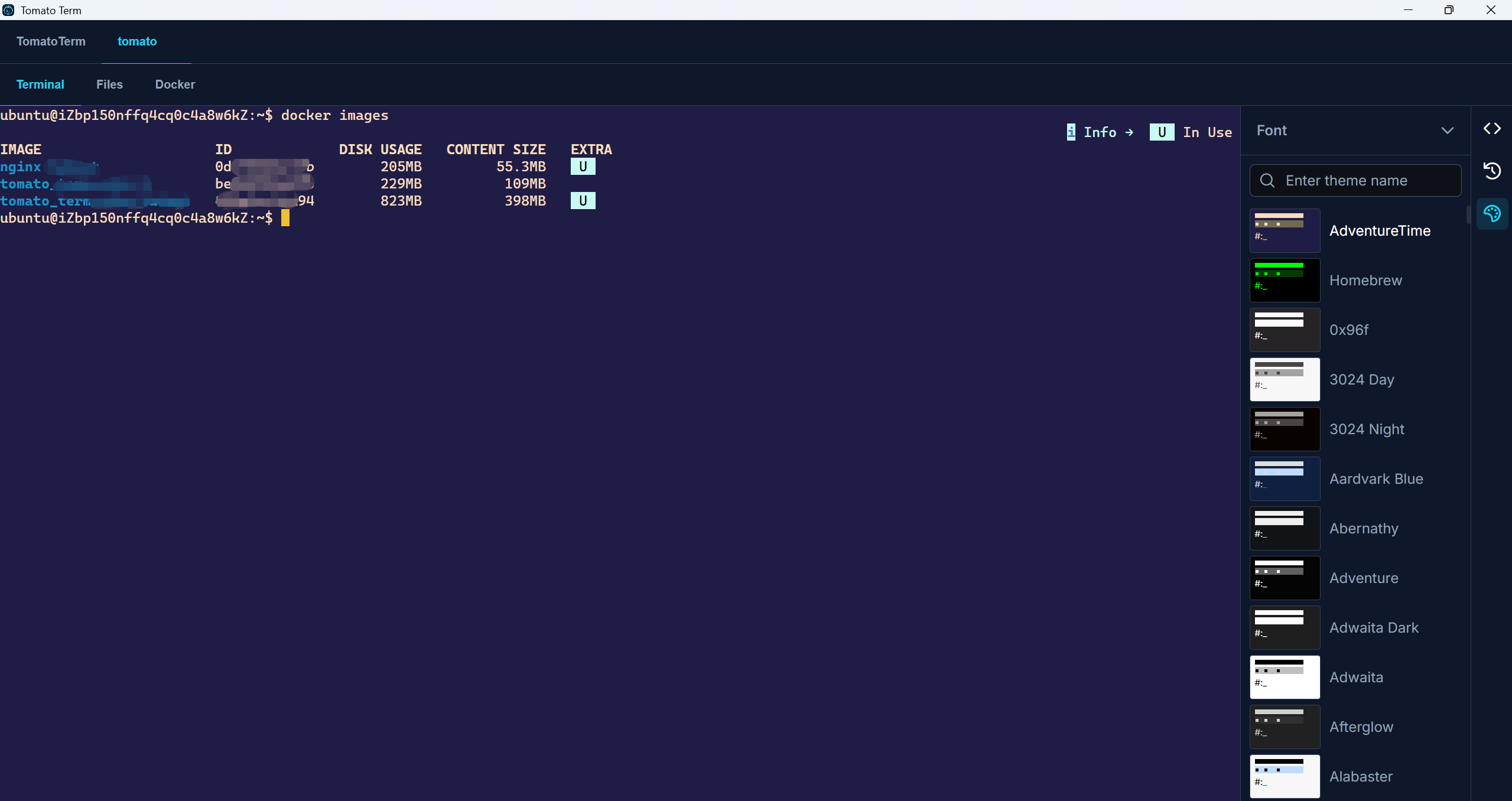
Interface customization screenshot

Customize the UI

Choose from 398 themes, font sizes from 8 to 38, and a curated set of terminal-friendly fonts.

Local-first by design, so sensitive data stays on your computer whenever possible

For SSH tools, the biggest concern is often not missing features. It is whether connections detour through someone else, whether passwords get uploaded, and whether logs leak. TomatoTerm is designed to keep connections, data, and secrets under your control.

TomatoTerm does not hand your server connections to a third-party relay before executing actions for you. It is a local-first, local-storage, direct-connection desktop tool. It only contacts TomatoTerm servers for necessary scenarios such as licensing, activation, and limited event analytics.

Core capabilities connect directly from your machine

SSH, SFTP, port forwarding, workflow execution, and the core links behind cloud-assisted features all connect from your device to the target resource directly, without relaying through TomatoTerm servers.

That means your remote access path is not “platform first, server second”, which reduces the trust burden of platform-held connections.

Data stays local by default and is protected with device-aware encryption

Connection settings, configuration data, and business data are stored on your local device by default instead of relying on cloud hosting.

Local data is encrypted with a combination of device context and application mechanisms, aiming to make it hard to reuse outside the current device and current software environment.

Passwords, private keys, and API keys go into the OS credential store

Sensitive data such as passwords, SSH private keys, and API keys is not left in plain text across ordinary config files.

These secrets are encrypted and stored in the credential store provided by the operating system, so access is handled by system-level security capabilities.

Logs are desensitized by default to reduce secondary exposure

Logs are essential for troubleshooting, but they can easily become another leak source. TomatoTerm masks log data where possible to avoid direct exposure of passwords, keys, tokens, and other secrets.

Even during issue investigation, the goal is to balance useful diagnostics with minimal data exposure.

TomatoTerm servers are contacted only for a few necessary scenarios

Communication with official TomatoTerm servers is intentionally limited to required cases such as licensing, activation, and a small amount of event analytics.

In daily operations, the core admin workflow does not depend on continuously sending your server actions to the platform.

The security goal is simple: reduce your concern about the tool itself

Many users worry less about their servers and more about whether the management tool takes one more privilege, keeps one more copy of data, or adds one more hidden network hop.

TomatoTerm aims to lower that concern so you can use batch management, workflows, and automation without taking unnecessary platform-side risk.

In one sentence: your connections are established directly by your computer whenever possible, your data stays on your computer whenever possible, and your sensitive credentials are protected by your operating system instead of an invisible middle layer.

Learn TomatoTerm in 3 Minutes

Three simple steps from download to your first workflow, even for first-time users.

1

Download and Install

Supports Windows and macOS

2

Add a Server

Enter IP, username, and password
Supports key auth and jump hosts

3

Create a Workflow

Drag nodes onto the canvas
Connect, configure, run. That is it.